Overview
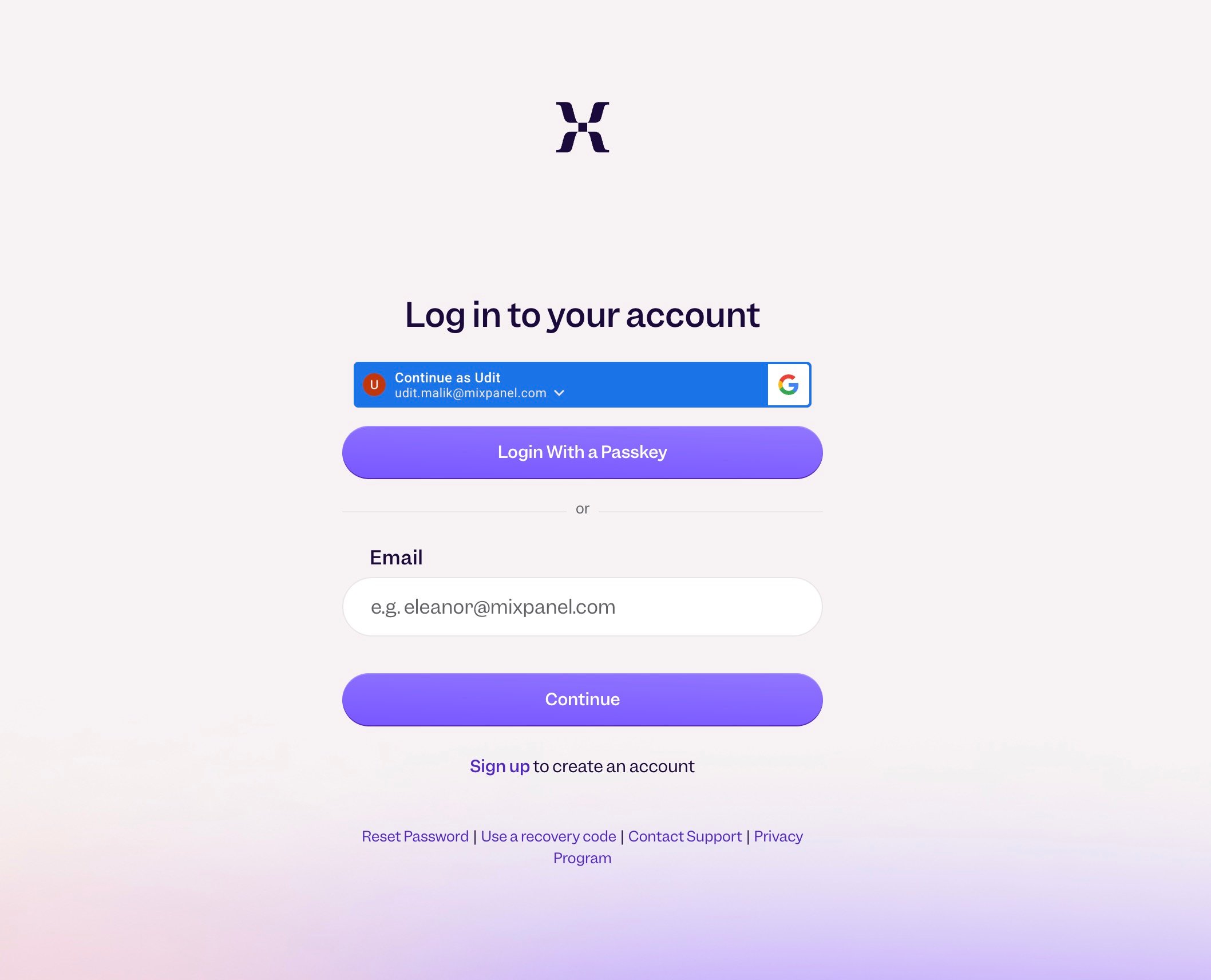
Users must authenticate themselves through a login process to access Mixpanel. Mixpanel supports multiple login methods.Magic Link Login
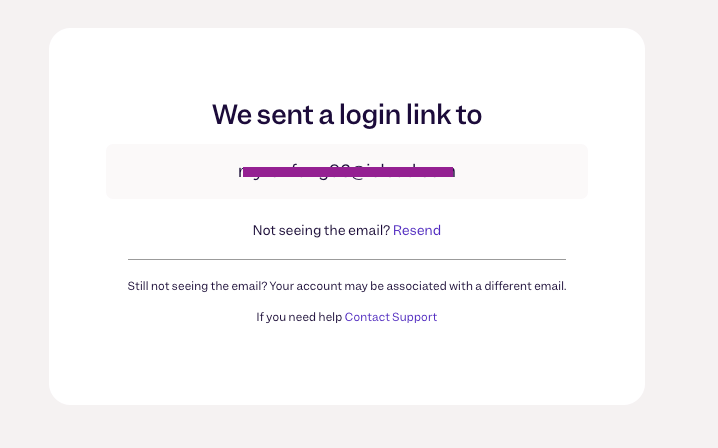
If you do not see the magic link email in your inbox/junk/spam mailbox, you may need to create an account or your account may be associated with a different email address.
Password Login
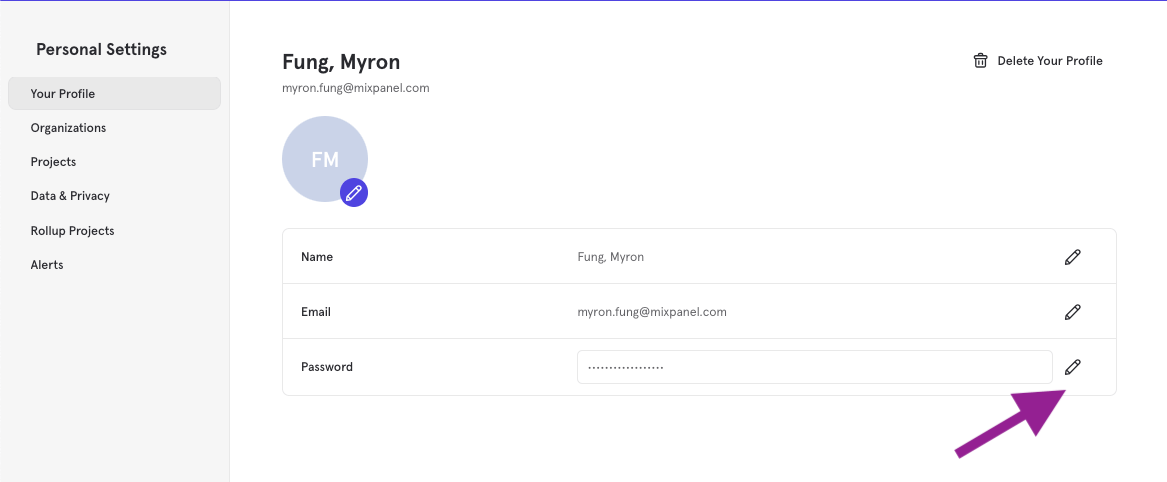
You can set a password for your user account if you prefer to log in by providing an email and password instead of the Magic Link. To set a password for your account:- Click the settings button (gear icon) in the bottom left corner of the UI
- Select “Personal Settings”
- Navigate to “Your Profile”
- Click the pencil icon to set your password.
Passkey Login
Passkeys offer a modern, phishing-resistant way to sign in to Mixpanel without a password. Instead of typing a password or a one-time code, you authenticate with something you already use to unlock your device - Touch ID, Face ID, Windows Hello, or a hardware security key. Passkeys are built on the WebAuthn/FIDO2 standard. The credential never leaves your device, and it is cryptographically bound to Mixpanel’s domain, so it cannot be phished, reused on a fake login page, or replayed by an attacker. To set a passkey for your account:- Click the settings button (gear icon) in the bottom left corner of the UI
- Select “Personal Settings”
- Navigate to “Your Profile”
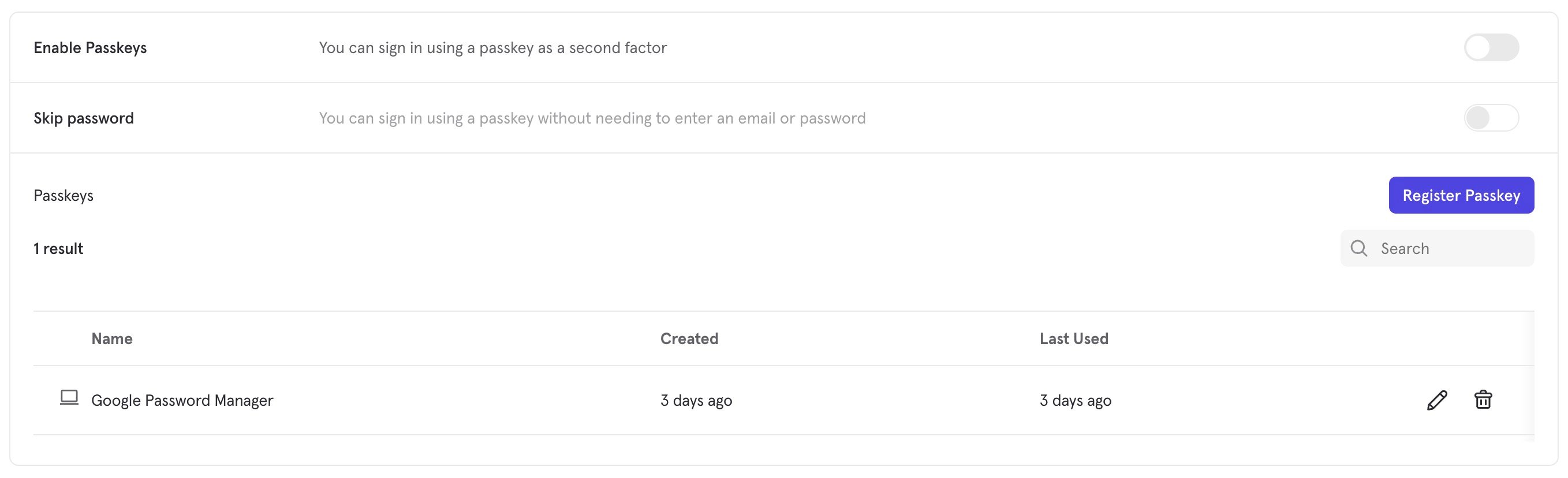
- Under the Passkeys section, click the “Register passkey” button
- Follow your device’s prompt to confirm with your fingerprint, face, PIN, or security key
Logging in with a passkey
- On the login page, click “Login with passkey”, or enter your email and continue
- When prompted, choose to sign in with your passkey
- Confirm with your device (fingerprint, face, PIN, or security key). You’re in!